
About materials
Always know exactly what's on your shelf—and what it really costs.
Keeping track of raw materials across dozens of batches can get overwhelming fast. Materials in the app give you a single place to monitor stock levels, costs, and usage — so you're always working from accurate numbers.
Materials represent the raw goods and supplies you use to create your finished products, allowing you to track costs, manage inventory levels, and streamline production workflows.
This article provides an overview of how materials work within the app and how to effectively manage them to gain better insights into your manufacturing process.
In this article:
- How we define a material
- Adding or importing your materials
- Exporting your materials
- Viewing your material details
- Uploading images
- Material unit costs
- Tracking units
- Low stock quantity limits
- Inventoriable materials
- Non-inventoriable materials
- Preferred Vendors
- Usage and Purchase Activity
What is a material?
A material is any raw material or ingredient used to make a product. These may be:
- Beads, wires, or clasps
- Lye, fragrances
- Fabric
- Wood
- Any other material used or consumed to make a product
Adding or importing materials
You can add materials individually or import them in bulk using a CSV (spreadsheet) file.
For a detailed step-by-step tutorial on adding materials manually, please see our Introduction to Materials.
Exporting your materials
You can export your materials from your account to gain a detailed overview of your inventory data. Whether you're tracking costs, analysing stock levels, or sharing reports, the export feature allows you to generate a comprehensive file for your needs. See the Exporting materials article to learn more.
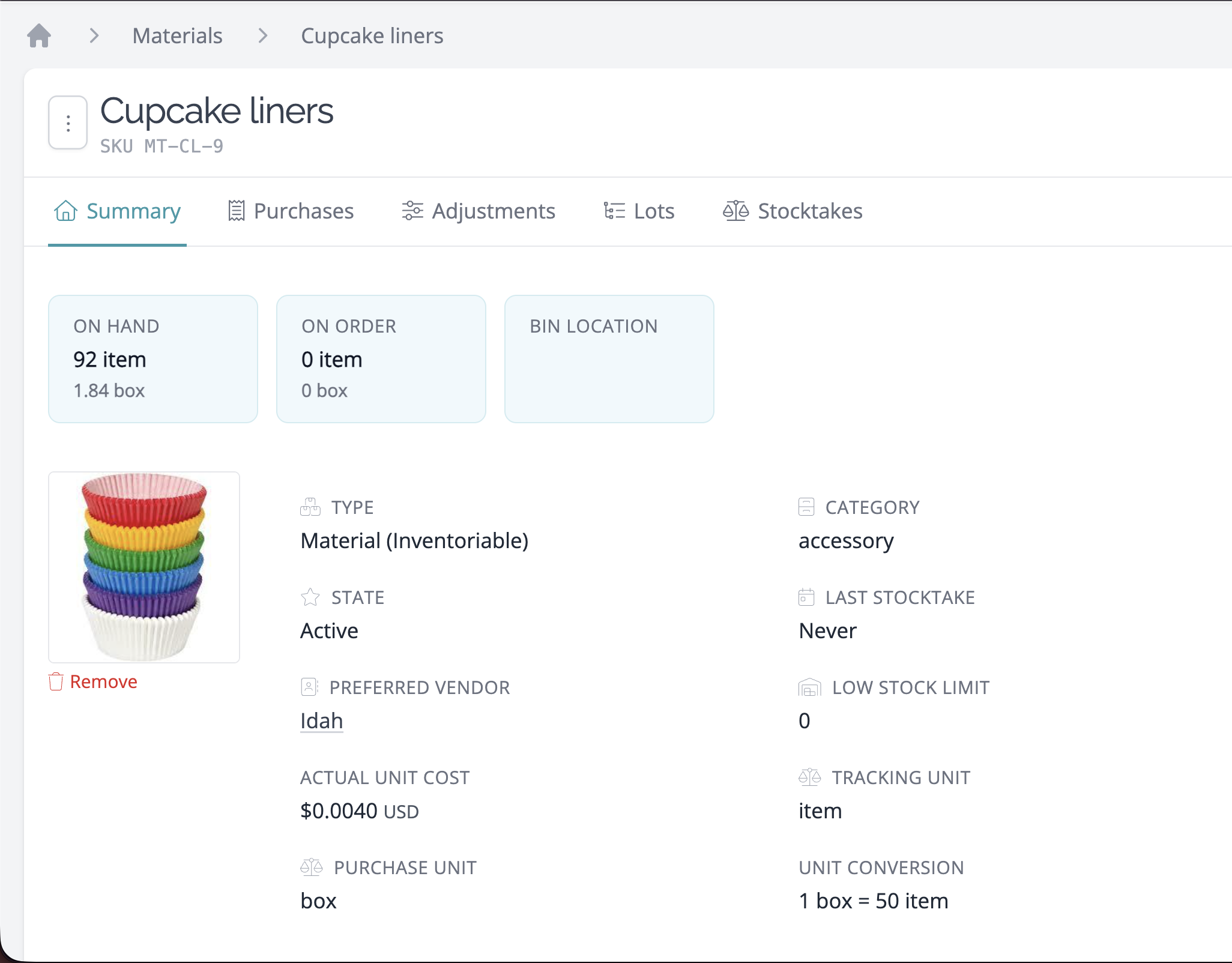
Viewing a material
Each material has a detail page containing a summary of stock levels and a description of the material.
To find your material detail page:
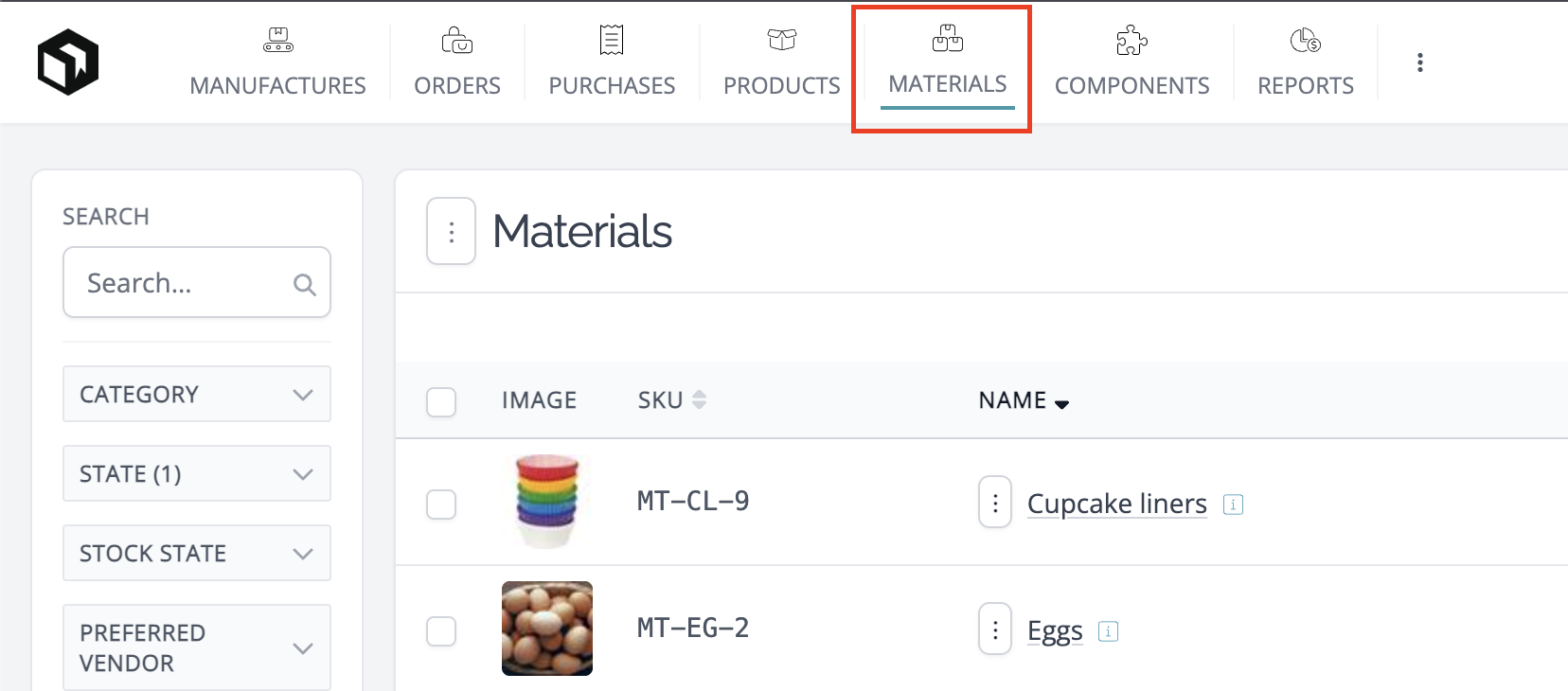
- Go to your Materials List page.
- Search or filter to find the material you would like to view, then click the name of the material.
-
The page that appears is your material detail page.
Uploading an image for a material
To add an image for a material:
-
Go to your Materials List page and click the name of the material you want to update.
-
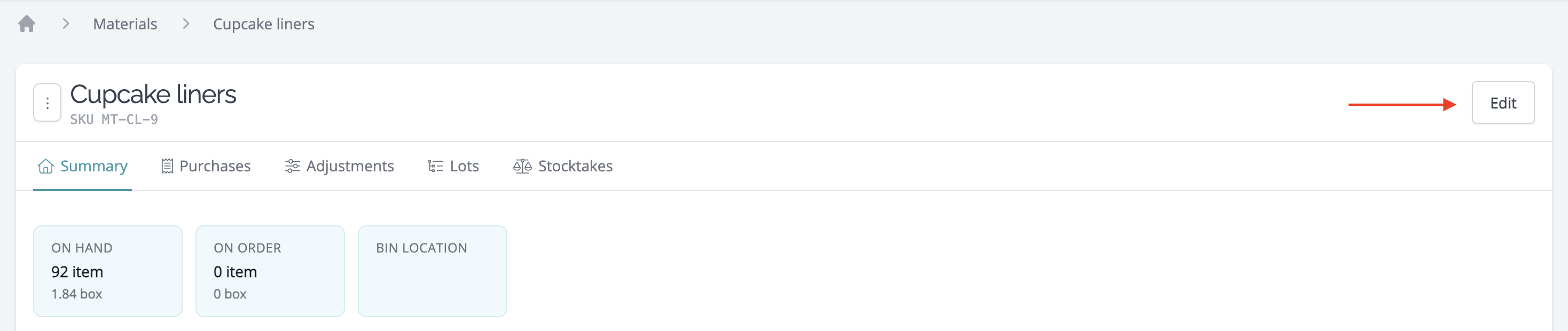
Click the Edit button in the page header.
-
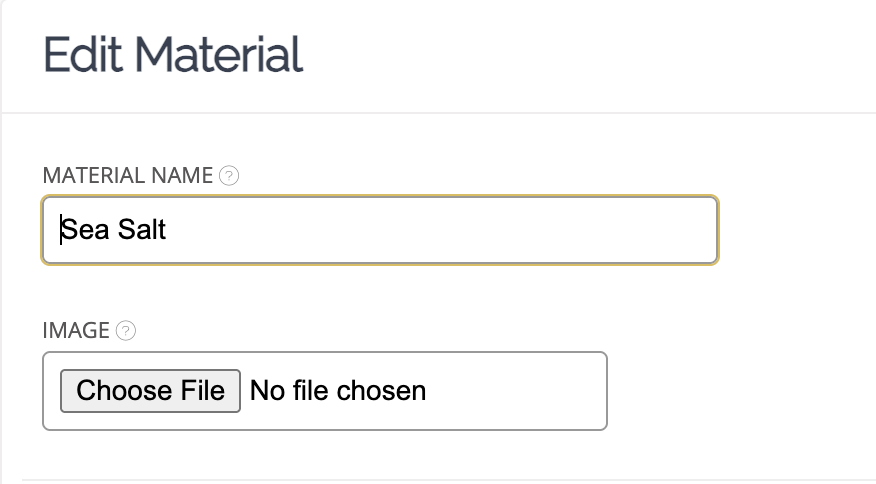
Select the Choose File button and upload your image.
-
Click Save to save your changes.


Note: Make sure your image is in PNG, GIF, or JPG format and is no larger than 6MB. You can follow these steps whenever you need to change your material image.
Material unit costs
Your material unit costs are calculated automatically using your complete purchase history.
Learn more about material costing here ».
Tracking units
Your material's tracking unit is the unit of measurement you want to track your manufactures and stock levels in.
Your material's purchase unit is the unit of measurement in which you commonly purchase this material. This can be the same as your material's tracking unit or a different unit completely. You can use a standard measurement unit (such as Pound or Kilogram) or define a unit that better describes how you buy the material (i.e., Jar, Bag, or Strand).
Learn more about material tracking and purchase units here ».
Low stock quantity limits
Each of your materials can be set with a low stock quantity limit. If your stock level falls below your set limit, the material will be displayed as "low stock."
Inventoriable materials
Inventoriable materials hold a quantity and value that increases and decreases based on stock changes.
- Enter an expense → Total inventory value increases
- Create a manufacture → Total inventory value decreases
Read more about inventoriable materials here »
Non-inventoriable materials
If you want to track items not directly used in your manufactures (such as tools or equipment), you can set these as non-inventoriable materials. Unlike inventoriable materials, they don't hold a cost value in the system, nor are they included in any manufacture or cost of goods sold calculations.
Read more about non-inventoriable materials here »
Preferred Vendors
The supplier you purchase this material from most regularly can be set as your "Preferred Vendor." Each time you enter a new expense for this material, you can nominate the vendor you purchased it from.
Usage & Purchase Activity
You can summarise your usage and purchasing activity on your material page. This provides a view of the rate at which you purchase and consume this material.
This data can be helpful when creating inventory forecasts (i.e., planning for future purchases and manufacturing).

The summary will display totals for the following periods: 1 week, 1 month, 3 months, 6 months, 12 months, and all time.
Usage and Purchase Activity breakdowns are available on Indie+ plans.
Need Help?
- Browse the full Materials section of the knowledge base for more articles.
- Have questions about your materials? Get in touch with our support team, and we'll be happy to help.