
Importing Recipes via CSV
Learn how to import your recipes in bulk using a CSV file
Got a spreadsheet full of recipes ready to go? This guide walks you through preparing your CSV, uploading it to the app, and fixing the most common errors — so your recipes get in on the first try.
The Recipe Bulk Import tool lets you add or update multiple recipes at once by uploading a CSV file. Whether you're setting up your account for the first time or making changes to your existing product list, this tool saves a lot of manual work.
In this article:
- Finding the Recipe Bulk Import page
- Pre-import checklist
- Preparing your recipe CSV file
- Understanding the multi-row format
- Exporting your spreadsheet to CSV
- Importing your recipes into the app
- Troubleshooting
- FAQ
Finding the Recipe Bulk Import page
To find the Bulk Import page for recipes:
-
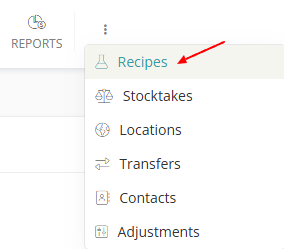
Go to the Recipes page from the main menu
-
Select the Bulk Import icon in the top right of the page

You'll now be on the Recipe Bulk Import page, where you can download a template CSV file and review the import instructions.
Alternatively, you can find this page by going to your Imported Files page. (How do I find my Imports page?) Select the "New Import" option and select "Recipes" from the dropdown menu.
Pre-import checklist
Most recipe import failures come down to a few common data issues. Run through this checklist before uploading your file to avoid the most frequent errors.
- All Product SKUs must already exist in the app — the importer matches recipes to products by SKU. If a SKU doesn't exist, that recipe is skipped. Add your products first if needed.
- All Material SKUs must already exist as materials — if any material in a recipe is missing, the entire recipe is skipped (not just the missing rows). Import your materials first before importing recipes.
- SKUs must match exactly — matching is case-sensitive and space-sensitive.
Candle-001andcandle-001are treated as different SKUs. - Save your file as .csv format — .xlsx and .numbers files will not be accepted. Export from your spreadsheet app as CSV before uploading.
- Remove any template placeholder rows — delete any example or instruction rows from the template before uploading.
Tip: The safest workflow is: import materials first, then import recipes. This ensures all material SKUs are in place before the recipe importer checks for them.
Preparing your recipe CSV file
The recipe importer requires your CSV to follow a specific format. Two ways to get started are available.
Use the Bulk Import Spreadsheet Template
The template is the easiest starting point if you're creating recipes from scratch:
- Go to the Recipe Bulk Import page (How do I find the Bulk Import page?)
- Click Download the bulk import spreadsheet template
- Open the file in your preferred spreadsheet editor
Export your existing recipe list
If you're creating new recipes similar to existing ones, exporting your current recipe list can save time.
Export your recipe list to CSV by following the steps in: Exporting your recipes
Column reference
Below is a description of each column in the CSV file.
| Recipe Name | The name of the recipe for reference and reporting |
| Product SKU | The SKU of the product this recipe belongs to. Leave blank on continuation rows (see multi-row format). |
| Recipe Notes | Any notes added to the recipe |
| Batch Quantity | The number of units produced when this recipe is manufactured |
| Manufacturing Minutes | The total time required to manufacture one batch |
| Material SKU | The SKU of a material used in this recipe. One material per row. |
| Material Quantity | The quantity of the material used in this recipe |
Understanding the multi-row format
Each recipe can use multiple materials, and each material needs its own row. The importer groups rows into a single recipe based on the Product SKU column:
- A row with a Product SKU value starts a new recipe
- Rows with a blank Product SKU are treated as additional materials for the previous recipe
Here's an example showing two recipes — "Lavender Soap" with three materials, and "Rose Candle" with two:
| Recipe Name | Product SKU | Batch Quantity | Material SKU | Material Quantity |
| Lavender Soap Recipe | SOAP-LAV-001 | 10 | SHEA-BUTTER | 500 |
|
|
|
|
LAV-OIL | 50 |
|
|
|
|
COCONUT-OIL | 200 |
| Rose Candle Recipe | CANDLE-ROSE-002 | 6 | SOY-WAX | 400 |
|
|
|
|
ROSE-FRAG | 30 |
The blank cells in Recipe Name and Product SKU on continuation rows tell the app "this material belongs to the recipe above." Do not add a new Product SKU value until you are ready to start a completely new recipe.
Exporting your spreadsheet to CSV
Once your spreadsheet is ready, export it as a CSV file. The steps differ depending on which spreadsheet program you use:
How do I export a spreadsheet file as CSV?
Importing your recipes into the app
To import your CSV file into the app:
- Go to the Recipe Bulk Import page (How do I find the Bulk Import page?)
- Review the pre-import checklist to confirm your file is ready
-
Scroll to the Upload CSV File section at the bottom of the page
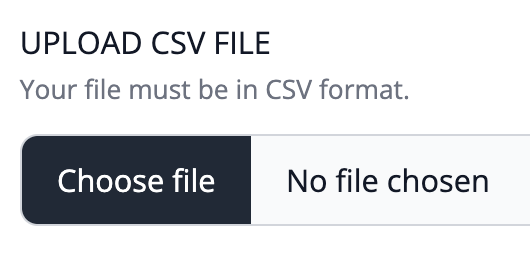
- Select Choose File and select your CSV file
- Select Upload File
You'll be taken to the Field Mappings page, where you confirm which field each column in your spreadsheet maps to. Once confirmed, select Yes, Import File to begin the import.
If you've used the template CSV or an exported recipe file, the app will map most fields automatically.
Your import will then be processed. You can track the status and review any errors on the import results page.
Troubleshooting
"Product with SKU 'X' not found"
The importer couldn't find a product in your account with that SKU.
- Check the product exists — go to your Products list and confirm the product is there. If not, add the product first, then re-import.
- Check the SKU matches exactly — matching is case-sensitive and space-sensitive. Open your product in the app and compare the SKU character by character with what's in your CSV. A trailing space or capital letter difference will cause this error.
- Check for variations — if the product has variations, the SKU in your CSV needs to match the variation SKU, not the parent product SKU.
"Recipe skipped — missing materials: X, Y"
One or more material SKUs in that recipe don't exist in your account.
Important: The entire recipe is skipped when any material is missing — not just the rows with the missing material.
- Identify the missing materials — the error message lists the exact SKUs that couldn't be found. Make a note of each one.
- Add the missing materials — go to Materials and add or import each missing material. Make sure the SKU you assign matches the SKU in your recipe CSV exactly.
- Re-import — once all material SKUs are in place, re-upload your CSV. Successfully imported recipes won't be duplicated — they'll be updated instead.
"Import failed — no recipes could be imported"
Every recipe in your CSV had at least one error, so nothing was saved.
- Review the error details — check the import results page for a list of which recipes failed and why. Each recipe will show the specific error (missing product SKU, missing material, etc.).
- Fix each error — work through the errors listed. The most common causes are missing product SKUs or missing material SKUs. See the sections above for how to fix each.
- Re-import the corrected file — once all errors are addressed, upload the file again.
Empty import / no rows detected
The import shows zero rows or fails immediately without processing. This is usually a file format issue.
- Check the file format — the file must be a .csv file, not .xlsx or .numbers. Open your spreadsheet app, use "Save As" or "Export", and choose CSV format explicitly.
- Check the file encoding — some spreadsheet apps export CSV with encoding that the app can't read. If you're using Excel, choose "CSV UTF-8" as the export format.
- Check for a header row — the first row of your file must be the column header row. If you accidentally deleted it or the file starts with data rows, the importer won't recognise the format.
- Open the file in a plain text editor — if you're not sure what's in the file, open it in a plain text editor (like Notepad or TextEdit) and confirm it looks like comma-separated values, not a binary or XML format.
For more CSV troubleshooting tips, see: CSV import troubleshooting
FAQ
Can I update my recipes in bulk using the CSV importer?
Yes. Importing a recipe with an existing Product SKU will replace and update the existing recipe for that product — including all its materials. This is how you can use the importer to make bulk changes to existing recipes.
What happens if some recipes import and some don't?
the app processes each recipe independently. If some recipes in your CSV have errors and some don't, the valid recipes will be imported successfully. The ones with errors will be skipped and listed in the import results. You can fix the errors and re-import just the affected recipes.
Does importing a recipe create the product if it doesn't exist?
No. The importer does not create products — the product must already exist in your account before you can import a recipe for it. Add your products first, then import your recipes.
Need Help?
If you're still having trouble with your recipe import, get in touch and we'll be happy to help.
Related articles:
- Importing materials — add your materials to the app in bulk before importing recipes
- Add or remove a recipe — add recipes one at a time if you only have a few to enter
- CSV import troubleshooting — general tips for fixing CSV import issues across all import types