
About products
Instantly know what's in stock, what it costs, and your margins.
Keeping track of every candle, soap bar, or piece of jewellery you make shouldn't take up half your day. Products in the app bring together your stock, recipe costs, and sales data so you can see where you stand at a glance.

A product is the single source of truth for anything you sell — recipe, variants, photos, and sales channels all in one place. Track them here, and the app keeps stock, costs, and profit for every item perfectly in sync.
Products can be manually created, imported in bulk, or pulled automatically from one of the available integrations. Product stock increases when you run a manufacture, and decreases when you add orders.
In this article, we'll cover:
- Adding or importing products
- Sales quantities
- Default sale price
- Setting low stock limits
- Product states
Adding or importing products
Connecting a sales channel integration is the quickest way to get your products into your account — they're pulled across automatically. If you don't sell through a supported channel, you can add products manually or import them in bulk via CSV.
For a step-by-step walkthrough on adding your first product manually, see Introduction to Products.
Sales quantities
Sales quantities are useful when you always sell more than one item together. You can set a sales quantity on any product (Changing the sale quantity for a product), but they can't be configured for individual variations.
If you always sell in single quantities, leave this as the default of 1.
Example: Sally always sells her soaps in packs of four. By setting her product's Sales Quantity to 4, The app will automatically reduce her stock on hand by four each time she records a sale.
Default sale price
The default sale price is the amount you usually sell this product for. It's set automatically from your initial integration data pull, but you can change it at any time by editing the product.
Your default sale price also appears on your pricing guidance, showing you real-time profitability and margins.
Setting low stock limits
You can set a low stock limit for each product. When your stock falls below that threshold, the product is flagged as "low stock" — making it easy to see what you need to manufacture next.
Example: if you set a Low Stock Limit of 10 and your stock falls to 8, the product is marked as "low stock."
To set the low stock limit for a product:
- Go to the product edit page (Add, edit, or remove a product).
-
Find the Low Stock Limit field.
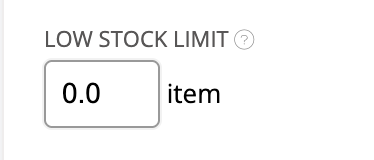
- Enter the number you want to set.
- Click Save.
The app does not send automatic notifications when a product reaches its low stock threshold.
Product states
The State field has three options:

- Active — the default setting. Choose this for any product you're currently selling.
- Draft — for products you're working on but aren't ready to sell yet. Useful for prototypes or upcoming launches.
- Archived — for products you've stopped making. Archived products are hidden from most views and searches, but can still be found using the filter on your products page.
Need Help?
Still have questions about products? Get in touch with our support team, and we'll be happy to help. You might also find these articles useful: