
About variations
Learn how to track product differences in Craftybase
Making the same product in multiple sizes, colours, or scents — and struggling to keep stock accurate for each? Variations let you track every version of a product separately while keeping them organised under one roof.
Variations are a way to manage small differences within a single product, such as sizes, colours, or scents. Instead of creating a separate product for every option, you group them together as variations of one product. Each variation can have its own stock level, recipe, sale price, and order history.
In this article:
- What is a variation?
- Variation attributes and values
- Creating variations
- Renaming variations
- Variation base sale price
- Demoting a product to a variation
What is a variation?
A variation represents one specific version of a product. For example, if you sell a candle in three sizes — Small, Medium, and Large — each size is a variation of the one candle product.
Craftybase tracks sales, manufactures, stock levels, and recipes separately for each variation, so you always know exactly how much of each version you have on hand.
Variations can be created manually or imported automatically from a connected integration such as Shopify or Etsy.
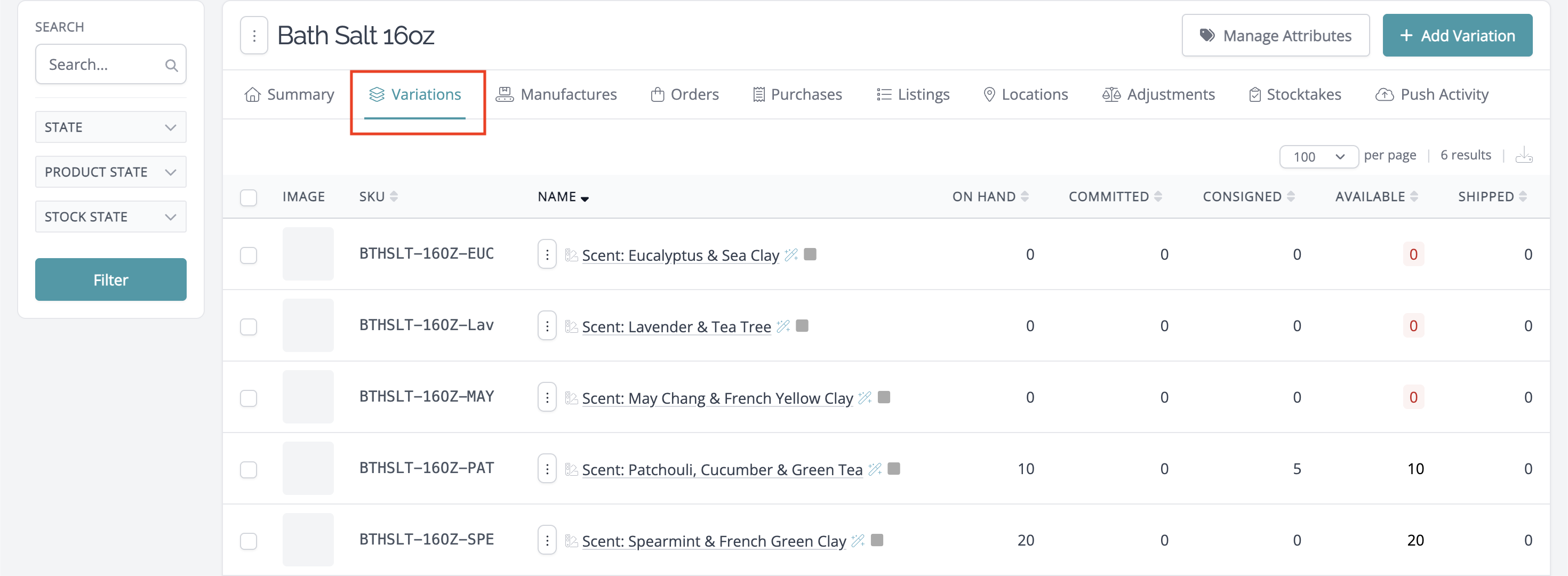
All your variations are listed under Products > Variations, where you can search and filter by attribute, and sort by stock level, name, or SKU.
Variation attributes and values
Variations are built from a combination of attributes and values.
- Attributes are the categories of difference — for example, "Size" or "Colour".
- Values are the specific options within each attribute — for example, "Small", "Medium", and "Large" for a Size attribute.
When you create a variation, you select one value from each attribute to form a unique combination. For example, a variation might be Size: Small | Colour: Red.
Example:
The Star Sweatshirt product has two configuration options: Size and Colour. The variation attributes would be:
Size: Small | Medium | Large
Colour: Red | Green | Blue
A variation of the Star Sweatshirt would be Size: Small | Colour: Red.
To manage the attributes available for a product, go to the product's Variations page and click Manage Attributes. See Add, edit, or remove variation attributes for full instructions.
Creating variations
To add a variation to a product, go to the product's page and open the Variations tab, then click Add Variation.
You'll be asked to select the attribute values that define this variation. Once saved, Craftybase creates a name for the variation automatically based on those values.
For a full walkthrough, see Add, edit, or remove a variation.
Renaming variations
Variations are named automatically based on their attribute values. If you need to change the name, you can do so on the variation's Edit page.
- Go to the product's Variations tab.
- Click the name of the variation you want to rename.
- On the variation detail page, click Edit.
- Update the Name field and click Save.
Variation base sale price
The Base Sale Price is the default price you charge for a specific variation. Craftybase uses this price when you create a new order for that variation — though you can change the price on an order-by-order basis.
The base sale price is also used in the Pricing Guidance section to help you understand your margins per variation.
To set or update the sale price for a variation, see Add, edit and remove price points.
Demoting a product to a variation
It's not possible to demote a product to a variation in Craftybase. Products and variations are separate record types, and this conversion can't be done automatically.
If you need to reorganise your products and variations, the recommended approach is to create the variation manually under the correct parent product, then transfer any relevant stock and order history.
Need Help?
Still have questions about variations? Please get in touch, and we'll be happy to help.