
Add an address or attach a file to a contact
Learn how to add an address or attach a file to a contact in the app.
Keeping your vendor and customer details in one place saves time when you need them most. The app lets you store addresses and file attachments directly on a contact so everything is within reach.
This feature is available on Studio and above plans.
In this article:
- Adding an address to a contact
- Editing or removing an address
- Adding a file to a contact
- Removing a file from a contact
Adding an address to a contact
- Go to Contacts in the main menu. (How do I find my Contacts page?)
- Select the contact you want to update.
-
Scroll to the Addresses section and click the Add button.

-
You'll be taken to a new page where you can enter the address details — name, street address, city, state, postcode, and country.
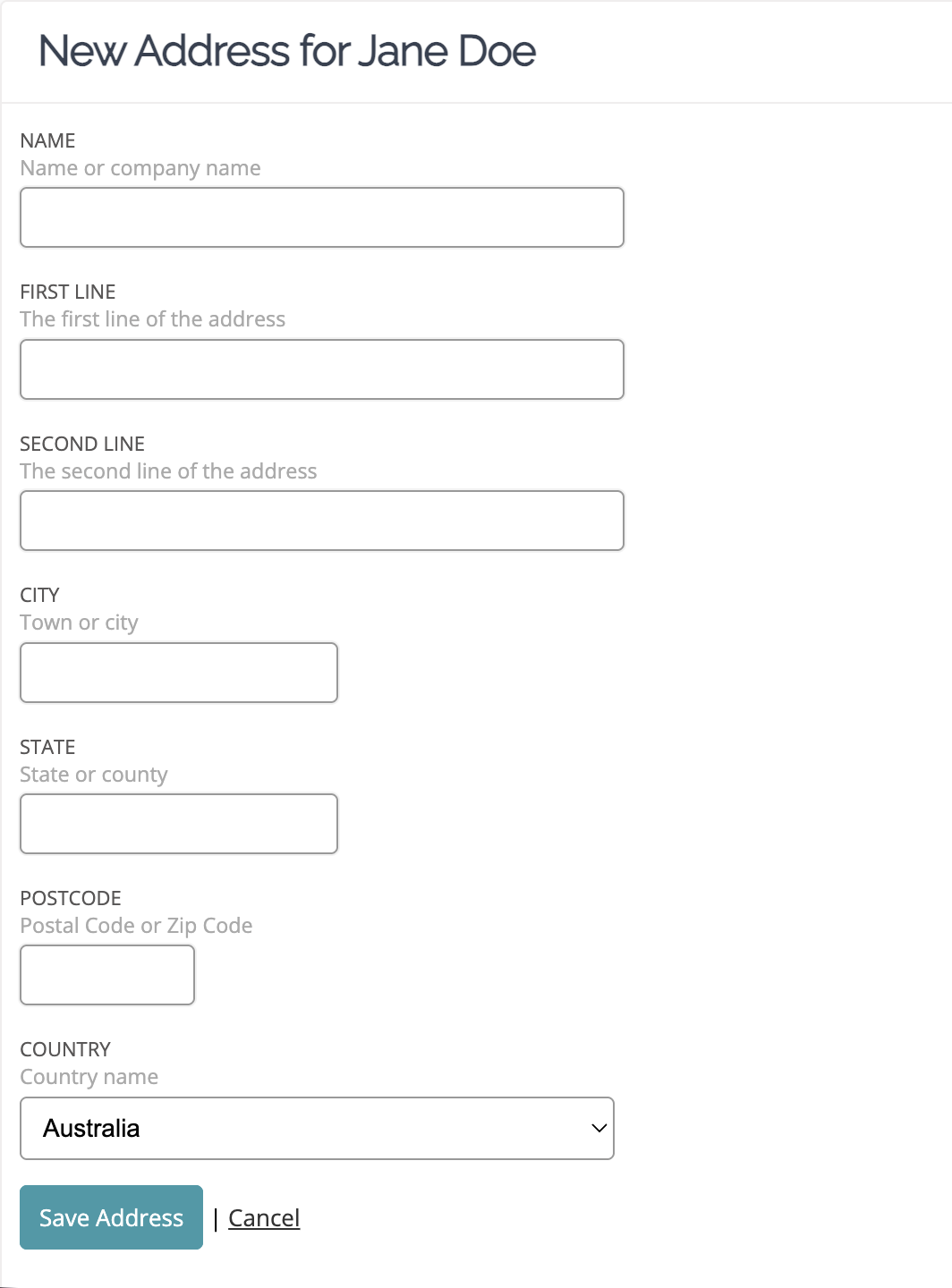
- Click Save Address to save and return to the contact.
Editing or removing an address
Each saved address on the contact has its own Edit and Remove buttons.
- Go to the Addresses section of the contact.
- Find the address you want to change.
- Click Edit to open the address form, update the details, and click Save Address.
- To delete an address, click Remove. A confirmation dialog will appear — click OK to confirm.
If an address is linked to an existing order it can't be removed. You'll need to reassign the order's address first.
Adding a file to a contact
- Select the contact.
-
Scroll to the Attachments section and click the Add button.

- Enter a description for the file.
- Choose your file using the file picker.
- Click Save Attachment.
When you need a copy, click the download icon next to the attachment to save the file to your computer.
Removing a file from a contact
- Go to the Attachments section of the contact.
-
Click Remove beside the attachment name.

- When the confirmation dialog appears, click OK to confirm the removal.
Need help?
If you're having trouble saving a file to your contact, check that it's a supported format (PDF, Microsoft Word, PNG, GIF, JPG, or CSV) and that it doesn't exceed the 100MB size limit.
For more on managing contacts in the app, see:
If you need more help, get in touch with our support team.