
Pushing Stock Updates to Faire
Automatically export your latest stock data to Faire using Stock Push.
Selling wholesale on Faire but finding it hard to keep your stock levels there accurate? Stock Push lets you send your current on-hand quantities straight to Faire — so your buyers always see what you actually have available.
Stock Push allows you to update your Faire stock levels directly from the app. You can choose to send updates manually by default or, if you're on an eligible plan, enable Auto-Push so the app can push updates for you on a schedule.
With Stock Push enabled, your account becomes your "source of truth" for stock quantities, helping you maintain consistent inventory across all of your sales channels.
Our Stock Push feature is available in Indie+ plans.
In this article, we will cover:
- Why use Stock Push?
- How Stock Push works
- Before you begin
- Enabling Stock Push for Faire
- Viewing your Stock Push page
- How to manually push a stock update to Faire
- Automating stock updates with Auto-Push
- Important things to note
- Troubleshooting
- FAQ
Why use Stock Push?
- Stay accurate across platforms — your stock levels in Faire match the quantities you track in the app.
- Avoid overselling — if you sell something on another channel, update it in the app and then quickly push the updated quantity to Faire, no fiddly multi-channel logins required.
- Flexible control over stock pushes — choose whether to send updates manually or enable Auto-Push on eligible plans to automate updates.
- Clear inventory visibility — view your Stock Push page to get an overview of all differences between platforms.
How Stock Push works
If something changes your available stock for a product (for example, you record a manufacture, adjust stock, or an order is pulled), the app will automatically create a Draft Stock Push for that product.
From your Stock Push page, you'll see a draft push showing:
- The current calculated quantity in the app (this is what will be pushed)
- The current quantity pulled from Faire
- The difference between the two, for reference
By default, drafts wait for your review. If Auto-Push is enabled, the app will automatically push these updates at the next scheduled interval.
When a draft is pushed to Faire, it moves through the following statuses:
- Draft → created but not sent yet
- Queued → on its way to Faire
- Completed → successfully updated
- Failed → didn't go through (with a note explaining why)
Faire uses on-hand quantity for Stock Push. When Stock Push is enabled, the app reads your Faire listings using the on-hand quantity (not the available quantity) to calculate deviations. This ensures the comparison and the push both use the same baseline that Faire accepts.
Before you begin
To use Stock Push with Faire, you'll need:
- A account on an Indie or higher plan
- A Faire shop connected to your account via OAuth
- Your Faire products already pulled into your account as listings
OAuth connection required. Stock Push for Faire requires your shop to be connected using OAuth (not a legacy API token). If you connected Faire using an Access Token, you'll need to reconnect via OAuth first. Go to Settings > Integrations and click Reconnect next to your Faire shop.
Enabling Stock Push for Faire
To enable and configure Stock Push to Faire:
- Go to your Integrations page.
- Under your integrations list, select the Faire shop you wish to push stock to.
-
Under the Stock Push column, toggle Status to on.
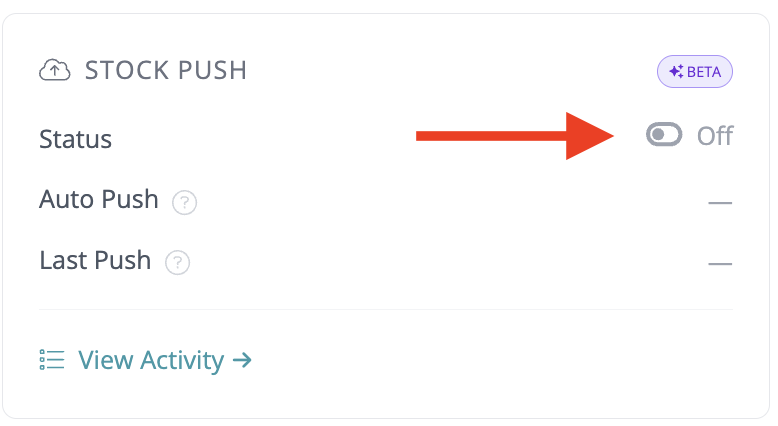
-
On the following page, click the Authorize button and proceed through the reauthentication process
Note: this authentication process is only to obtain new permissions from Faire to push data to your store, this will not impact any of your existing data or pulls.
- Once permissions are authorised, toggle Turn on Stock Push to enable it.
- Click Save Settings to confirm your changes.
Stock Push is now enabled and the app will start monitoring for changes in your stock levels.
Unlike Shopify and Square, Faire does not require you to select a location — inventory is pushed at the brand level. Setup is complete once you've authorised permissions and turned on Stock Push.
Viewing your Stock Push page
The Stock Push page gives you visibility into stock updates that have been created and sent to your integrations, as well as highlighting where stock levels differ between your account and your connected platforms.
To go to the Stock Push page in the app:
- From the top menu, hover over the ⋮ option.
-
Select Stock Push.
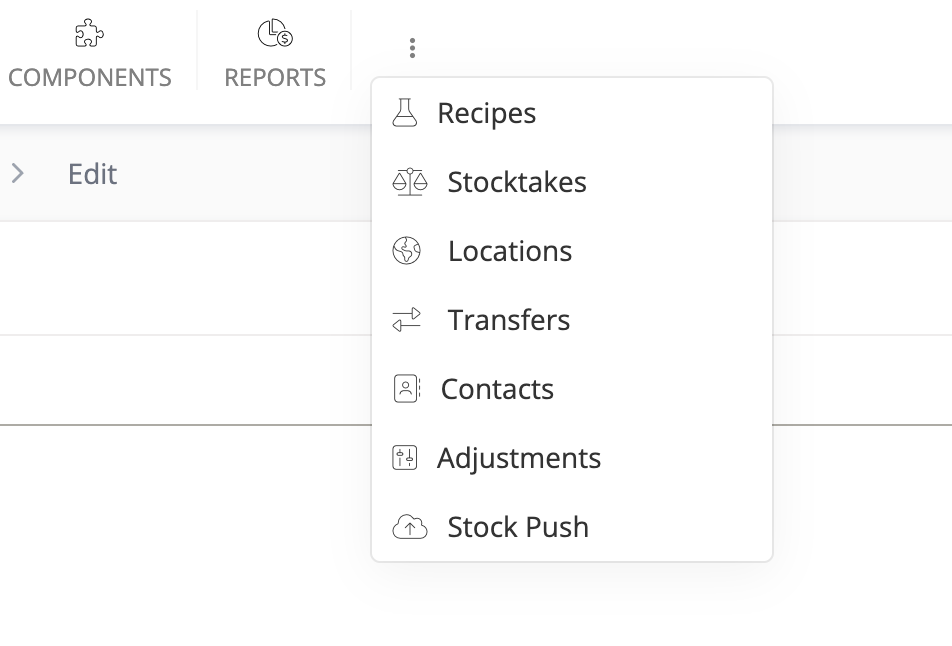
This will take you to the Stock Push tab, where you can find an overview of Draft, Queued, and Failed Stock Pushes across your connected integrations.

From here, you can also manage the settings for your connected integrations.
Draft entries are created when stock levels don't match, making it easy to spot products that may need adjustment.
How to manually push a stock update to Faire
Manual Stock Pushing lets you review and send stock updates to Faire under your full control. This can be helpful when you want full oversight or you're preparing your account for Auto-Push.
To perform a manual Stock Push from the app:
- Go to the Draft tab within the Stock Push page.
- Locate the Draft Stock Push you want to send to Faire.
- Confirm the stock quantity shown is what you expect.
-
Click Push to send the updated stock level to Faire.

Automating stock updates with Auto-Push
Auto-Push automatically sends stock updates from the app to your integrations on a set schedule, helping keep inventory accurate without ongoing manual work.
Why enable Auto-Push
- Keeps stock levels in sync across your integrations automatically
- Reduces the need to manually review and push updates
- Automatically maintains inventory accuracy across platforms
When Auto-Push works best
- Your inventory is accurate in the app
- You're confident in your Stock Push setup
- You want a set-and-forget approach to ongoing stock updates
If you're still reviewing or correcting stock levels, manual Stock Pushes can help you get everything aligned first.
For detailed setup instructions and tips, see About Auto-Push.
Auto-Push is available on our Business or Growth plans.
Important things to note
- One draft per product at a time — if stock changes again before you push, the draft will update automatically.
- Negative quantities can't be sent — if your stock shows negative numbers, you'll need to fix the issue first.
- No location selection needed — Faire pushes inventory at the brand level, so there's no location step during setup.
- Products must be pulled first — Stock Push can only push inventory for products that have already been imported from Faire. If a product is missing, run a product pull first.
Troubleshooting
If a Stock Push to Faire fails, you'll see an error code on the failed push. Here's what each error means and how to fix it:
| Error | What to do |
|---|---|
| FAIRE_VARIANT_NOT_FOUND | The product variant wasn't recognised by Faire. This usually means it was deleted or changed in Faire since you last imported. Re-import your Faire products to refresh the listings, then try pushing again. |
| FAIRE_UNAUTHORIZED | The app has lost inventory write access to your Faire shop. Go to Settings > Integrations, select your Faire shop, and click Reconnect to go through the OAuth process again. |
| INVALID_QUANTITY_NEGATIVE | The quantity to be pushed is negative. Negative quantities aren't accepted by Faire. Correct the stock level in your account first. |
FAQ
Does Faire Stock Push require a location?
No. Unlike Shopify and Square, Faire manages inventory at the brand level rather than by location. You don't need to select a location during setup — just authorise permissions and turn on Stock Push.
Why does the app use on-hand quantity for Faire?
Faire's API accepts on-hand quantity (the total you physically have) rather than available quantity (which subtracts reserved stock). Faire manages reserved stock from open orders on its side, so sending on-hand keeps Faire's stock levels accurate without double-counting the deduction.
When Stock Push is enabled, the app also reads your existing Faire listings using on-hand quantity so that deviation calculations and the pushed value share the same baseline - keeping comparisons accurate.
Why are some of my products not appearing in the Stock Push tab?
The app can only push inventory for products that exist as listings linked to your Faire shop. If a product isn't showing, it may not have been imported yet. Run a product pull from your Faire integration, then check again.
Do I need to reconnect my Faire shop just for Stock Push?
Only if you connected Faire using a legacy Access Token. Stock Push requires the WRITE_INVENTORIES permission, which is granted during the OAuth flow. If your shop was connected before OAuth was introduced, go to Settings > Integrations and reconnect via OAuth to add this permission.
Need Help?
Still have questions about setting up Stock Push for your Faire shop? Please get in touch, and we'll be happy to help.