
Pushing Purchase Orders to QuickBooks
Automatically export your Purchase Orders to QuickBooks using our Purchase Order Push feature.
This article explains how Purchase Order Push works, how to configure it, and how to export Purchase Orders from your account to QuickBooks — including pushing multiple POs at once from the Accounting Activity page.
If you haven't connected to QuickBooks yet, start with our main article → Connect QuickBooks
In this article:
- How Purchase Order Pushing Works
- Configuring Purchase Order Pushing
- Pushing a single purchase order to QuickBooks
- Bulk pushing purchase orders to QuickBooks
- QuickBooks status in your Purchases list
- Accounting Activity
- FAQ
- Video
QuickBooks is an online bookkeeping and accounting suite for small businesses. With Purchase Order Push enabled, the app can send your purchasing activity directly to QuickBooks, helping keep your books aligned with your inventory activity.
How Purchase Order Push Works
Purchase Order Push allows you to export Purchase Orders created in your account to QuickBooks.
When a Purchase Order is pushed:
- The Purchase Order details are sent to QuickBooks
- A corresponding Bill is created in QuickBooks
- A direct link to the QuickBooks Bill is stored in the app
Purchase Order Push focuses purely on exporting purchasing records.
If you're looking to sync COGS or inventory valuation changes instead, see → Pushing Inventory Data to QuickBooks
Configuring Purchase Order Push
To set up and configure the PO Push feature:
- First, ensure you have QuickBooks connected
- Go to your QuickBooks summary page
-
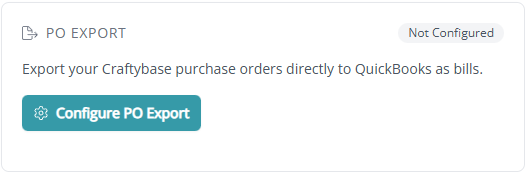
Select Configure PO Export
- Select Get Started
- Choose the Inventory Asset Account you'd like to export purchase orders to from the app. (What is my Inventory Asset Account?)
- Select Continue to save your configuration
Purchase Order Export is now configured and enabled for your account!
Pushing a single purchase order to QuickBooks
You can push any individual purchase order directly from its detail page:
- First, ensure you've configured and enabled PO Exports for your integration (How do I configure PO Push?)
- Go to the Purchases page
- Open the purchase order you'd like to push to QuickBooks
- Review all the line items and totals to ensure they're correct
- Click the Push to QuickBooks button in the top-right corner

The app will send the Purchase Order details to QuickBooks and create a corresponding Bill.
After the push completes:
- A link to the QuickBooks Bill will appear on the Purchase Order page.
- You can click this link to open the Bill directly in QuickBooks.

Note: Currently, tax amounts are not included in the push to QuickBooks. If you'd like to see tax syncing added in a future update, please get in touch with our support team!.
Bulk pushing purchase orders to QuickBooks
If you have multiple pending purchase orders to push, you can select and push them all at once from the Accounting Activity page — saving time compared to opening each PO individually.
Indie+ plan required: Bulk push is available on the Indie plan and above.
To bulk push purchase orders:
- Go to your Integrations page
- Locate your QuickBooks integration and select the Activity tab to open the Accounting Activity page
- In the activity list, tick the checkbox next to each pending purchase order you'd like to push. To select all visible pending POs, tick the checkbox in the table header
- Once you've selected at least one PO, the Push button in the top-right corner will become active and show the count of selected items — for example, Push (3)
- Click the Push button to submit
The app will queue the selected purchase orders for processing. Each PO's status will change to Queued while it's being processed in the background. Once processing is complete, the status will update to Completed or Failed.
The page updates in real time as each purchase order is processed — you don't need to refresh to see the latest status.
QuickBooks status in your Purchases list
Once your QuickBooks integration is connected, your main Purchases list within the app will display a status column showing the QuickBooks push state for each purchase order.
This lets you quickly see which POs have already been pushed, which ones are still pending, and which ones may need attention:
- Pending: the PO has been created in the app and is waiting to be pushed
- Queued: the PO has been submitted for bulk push and is being processed in the background
- Completed: the PO has been successfully exported to QuickBooks
- Failed: an error occurred during the push (Why is my Purchase Order push failing?)

Clicking the QuickBooks status badge
Each status badge in the QuickBooks column is clickable. Where you land depends on the current push state:
- Completed or Failed: clicking the badge takes you directly to the matching record on your Accounting Activity page, so you can review the sync details or error without searching for the record manually.
- Pending (not yet synced): clicking the badge takes you to your Accounting settings page, where you can check your QuickBooks configuration.
Column header tooltip
Hovering over the QuickBooks column header shows a tooltip with your current connection status and a View accounting settings link. You can use this link to jump straight to your accounting configuration — whether or not QuickBooks is connected.
Paid column
The Paid column in your Purchases list uses a banknote icon to show whether a purchase order has been marked as paid. A green icon means payment is recorded; a grey icon means it hasn't been paid yet.
Vendor column
If a vendor contact is assigned to a purchase order, their name appears as a link in the Vendor column. Click the vendor name to open their contact page and view their full details.
Viewing your Accounting Activity
The Accounting Activity page provides visibility into all records exported to QuickBooks, including Purchase Orders and Journal Entries.
How to find your Accounting Activity page
- Go to your Integrations page (How do I find my Integrations page?)
- Under your Integrations list, locate your QuickBooks integration
- Select the Activity tab

Accounting Activity page
This page shows a full log of every purchase record that has been pushed to QuickBooks. Here, you'll notice a few columns:

- Push Date: The date and time the record was sent to QuickBooks.
- Activity: Shows the source record in your account and the destination document in QuickBooks
- Amount: The total monetary value associated with the push
- Status: An icon representing the status of the push
- Pending: The purchase has been created in your account and is waiting to be pushed to QuickBooks
- Queued: The purchase has been submitted for bulk push and is being processed in the background
- Completed: The record was successfully exported to QuickBooks.
- Failed: An error has occurred with the push (Why is my Purchase Order push failing?)
FAQ
Why is my Purchase Order push failing?
If your purchase order push is failing, you'll need to double-check that your ledger accounts are configured in the app. (How can I configure my ledger accounts?)
Can I connect to QuickBooks if I'm outside the US?
At the moment, our beta QuickBooks integration is only available for US-based customers. As the beta version doesn't yet account for the wide range of international tax rates and reporting rules, connections from outside the US aren't supported just yet.
We're planning to expand this in the future, so if you're located outside the US and interested in using QuickBooks with your account, please get in touch with our support team!
Can I push COGS and inventory valuations to QuickBooks?
Yes. If you're on our Growth plan, you can use QuickBooks Inventory Sync to automatically send your Cost of Goods Sold (COGS) and inventory valuations from your account to QuickBooks as journal entries, mapped to your chart of accounts.
What happens if I disconnect QuickBooks from my account?
If you choose to disconnect QuickBooks from your account, all the data you've pushed to QuickBooks will remain in your account. We cannot delete data from QuickBooks.
Instead of disconnecting QuickBooks, we'd recommend disabling it instead. Your data will be preserved, and you can re-enable the connection at any time.
What disabling does:
- Prevents any purchase pushes
- Keeps all your mappings and activity logs
VIDEO: Pushing Purchase Orders to QuickBooks
Need Help?
Still have questions about pushing Purchase Orders to your QuickBooks account? Please get in touch, and we'll be happy to help.