
Pushing Inventory Data to QuickBooks
Automatically push your latest inventory data to QuickBooks using our Inventory Sync feature.
This article will guide you through how to set up and push inventory data to QuickBooks through our Inventory Sync feature.
Our QuickBooks integration allows you to automatically post journal entries for inventory value changes and COGS calculations, keeping your books accurate without manual data entry.
Our QuickBooks integration is currently in Beta and at this stage, only supports US-based customers. We are planning more features, as well as expanding support for other countries. If you would like more details or have feature suggestions, please get in touch!
In this article:
- What is Inventory Sync?
- How Inventory Sync Works
- Configuring Inventory Sync
- Understanding the Journal Entries
- Viewing your Accounting Activity
- FAQ
- Video
Our Inventory Sync feature is available in our Growth plans.
What is Inventory Sync?
Inventory Sync keeps your QuickBooks accounting accurate by automatically posting journal entries for:
- Inventory Value Changes - When you add starting inventory or make adjustments
- Cost of Goods Sold (COGS) - When orders are shipped to customers
- Inventory Losses - When you record stocktake differences or write-offs
This ensures your QuickBooks Profit & Loss statement accurately reflects your true product costs, and your Balance Sheet shows the correct inventory asset value.
How Inventory Sync Works
Once enabled, Inventory Sync runs automatically in real-time. Here's what happens:
- You work in the app as normal - Record manufactures, ship orders, adjust inventory, add expenses - everything you normally do.
- the app creates journal entries automatically - When inventory-related events occur, journal entries are automatically created in QuickBooks:
- Starting inventory is recorded with opening balances
- When orders ship, COGS is posted to match the inventory reduction
- Adjustments and stocktake differences are recorded as losses
- Your QuickBooks records stay accurate - Your Inventory Asset account reflects current inventory value, your COGS account shows costs as products are sold, and your P&L accurately represents your business performance.
Configuring Inventory Sync
To set up and configure the Inventory Sync feature:
-
First, ensure you have QuickBooks connected to your account
Navigate to your QuickBooks summary page
Select Configure Inventory Sync
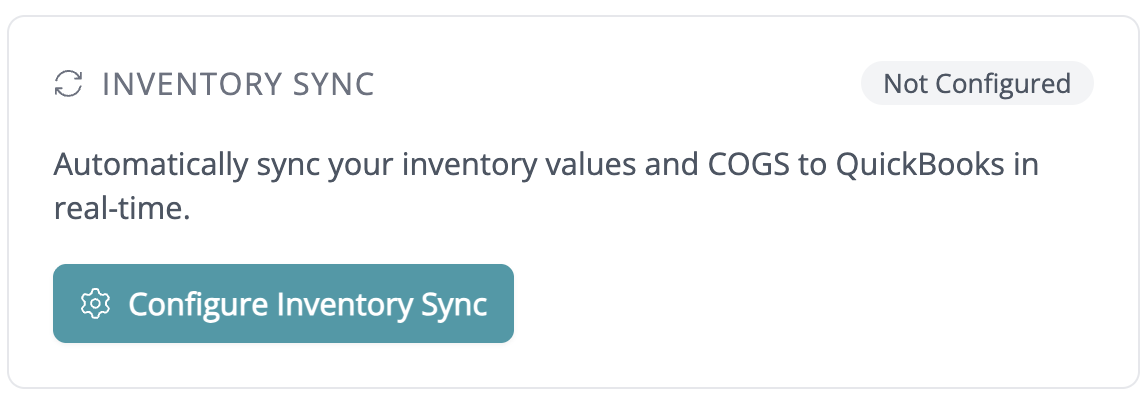
Review what Inventory Sync does and select Configure Sync →
Choose the Opening Balance Account where you want to post your starting inventory values. This is typically an Equity account (What is an Equity Account?)
Next, you'll need to map your QuickBooks ledger accounts for your inventory transactions (What are Ledger Accounts?)
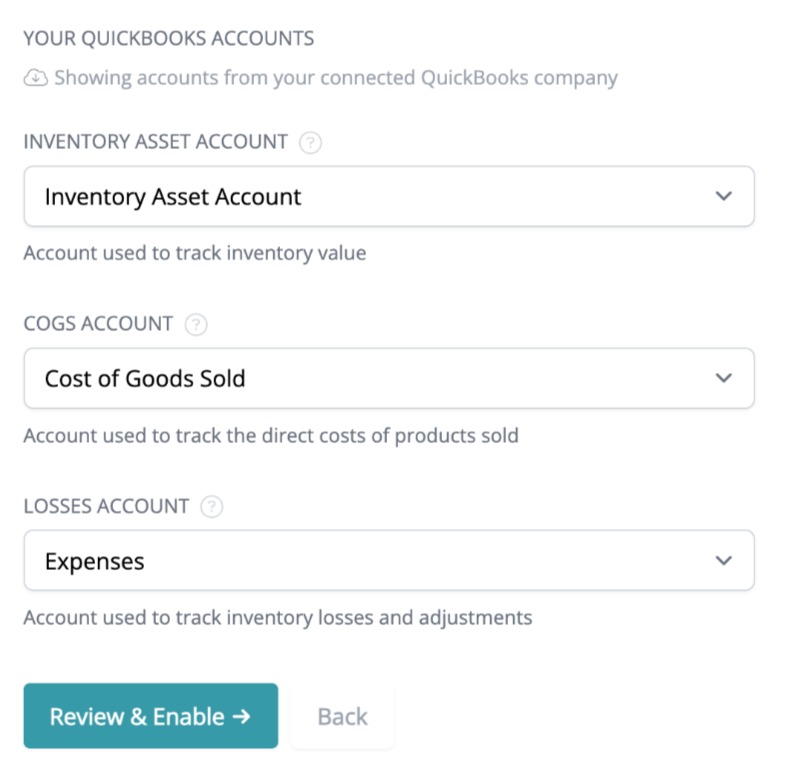
- If you need to create them first, you can do so in QuickBooks and then refresh the page
- Review your account configurations to ensure they're correct. Once enabled, these mappings will be used for all automatic journal entries.
-
Click Enable Inventory Sync to activate the feature. From this point forward, the app will automatically create journal entries for inventory activity.

Understanding the Journal Entries
Inventory Sync creates three types of journal entries in QuickBooks:
Starting Inventory Values
When you first enable Inventory Sync, or when you add starting inventory for items and products:
- Debit: Inventory Asset Account (increases asset value)
- Credit: Opening Balance Account (balances the equity)
Example: You have $5,000 in starting inventory
- Debit Inventory Asset: $5,000
- Credit Opening Balance Equity: $5,000
Cost of Goods Sold (When Orders Ship)
When you mark an order as shipped in the app:
- Debit: COGS Account (recognizes the expense)
- Credit: Inventory Asset Account (reduces inventory value)
Example: You ship an order containing products that cost $150 in materials
- Debit Cost of Goods Sold: $150
- Credit Inventory Asset: $150
This is when COGS hits your P&L - not when you buy materials, but when you sell products.
Inventory Adjustments and Losses
When you adjust inventory or record stocktake differences:
- Debit: Losses Account (recognizes the loss)
- Credit: Inventory Asset Account (reduces inventory value)
Example: You discover $75 worth of damaged materials during stocktake
- Debit Inventory Losses: $75
- Credit Inventory Asset: $75
Important Notes
- Each journal entry includes a private note with a direct link back to the source record in the app
- The transaction date matches when the activity occurred in the app
- All amounts are calculated automatically based on your item costs and product material costs
Viewing your Accounting Activity
The Accounting Activity page provides visibility into all records exported to QuickBooks, including Purchase Orders and Journal Entries.
How to find your Accounting Activity page
- Go to your Integrations page (How do I find my Integrations page?)
- Under your Integrations list, locate your QuickBooks integration
- Select the Activity tab

Accounting Activity page
This page shows a full log of every record that has been pushed to QuickBooks. Here, you'll notice a few columns:

- Push Date: The date and time the record was sent to QuickBooks.
- Activity: Shows the source record in the app and the destination document in QuickBooks
- Amount: The total monetary value associated with the push
- Status: An icon representing the status of the push
- Pending: The purchase has been created in your account and is waiting to be pushed to QuickBooks
- Completed: The record was successfully exported to QuickBooks.
- Failed: An error has occurred with the push
FAQ
Can I connect to QuickBooks if I'm outside the US?
At the moment, our beta QuickBooks integration is only available for US-based customers. As the beta version doesn't yet account for the wide range of international tax rates and reporting rules, connections from outside the US aren't supported just yet.
We're planning to expand this in the future, so if you're located outside the US and interested in using this QuickBooks integration, please get in touch with our support team!
Why do I need QuickBooks Plus or Advanced?
Inventory Sync requires two things to work:
- A QuickBooks Plus or Advanced subscription — QuickBooks Simple Start and Essentials plans don't support inventory tracking or Cost of Goods Sold (COGS) calculations. These features require the Plus or Advanced subscription levels, which include the necessary chart of accounts structure and inventory capabilities.
- A Growth plan — Inventory Sync is only available on Growth plans.
If your QuickBooks plan is Simple Start or Essentials, upgrading your Craftybase plan alone won't enable Inventory Sync — you'll also need to upgrade your QuickBooks subscription to Plus or Advanced.
What's the difference between Inventory Sync and Purchase Order Export?
- Inventory Sync - Automatically posts journal entries for inventory values and COGS as you work
- Purchase Order Export - Lets you push your expenses to QuickBooks as Bills for accounts payable tracking
You can use either feature independently or use both together for complete accounting integration.
What happens if a journal entry fails?
If a journal entry fails to post to QuickBooks, it will show as "Failed" in your Accounting Activity with an error message explaining why. Common reasons include:
- QuickBooks connection expired - Reconnect your integration
- Selected account was deleted in QuickBooks - Update your account mappings
You can view failed entries from your QuickBooks summary page and take action to resolve them.
Will past inventory activity be synced?
When you first enable Inventory Sync, your current starting inventory values will be posted to QuickBooks. Historical transactions prior to enabling the sync are not retroactively posted - only new activity going forward will create journal entries.
VIDEO: Pushing Inventory Data to QuickBooks
Need Help?
Still have questions about pushing Inventory Data to your QuickBooks account? Please get in touch, and we'll be happy to help.