
About Stock Push
Keep your integration stock levels in sync with Stock Push
Tired of manually updating stock across Shopify, Etsy, Faire, and your other channels? Stock Push keeps your inventory in sync automatically — so you only manage stock in one place.
Stock Push allows you to update your integrations' stock levels directly from the app. Updates can be sent manually, giving you full control over what is pushed and when, or automatically using Auto-Push on eligible plans.
With Stock Push enabled, your account becomes your "source of truth" for stock quantities, helping you maintain consistent inventory across all of your sales channels.
Stock Push is available on Indie+ plans.
We'll cover:
- Why use Stock Push?
- How Stock Push works
- Supported channels
- Enabling Stock Push
- Viewing your Stock Push page
- Manual Stock Pushes
- Automating stock updates with Auto-Push
- Troubleshooting
- FAQ
Why use Stock Push?
- Centralised source of truth — Manage and update your stock levels in one place, with your account becoming the reference point for your connected integrations
- Maintain accuracy across platforms — Keep stock quantities aligned across your integrations as inventory changes are recorded in the app.
- Flexible control over stock pushes — Choose whether to send updates manually or enable Auto-Push on eligible plans to automate updates.
- Clear inventory visibility — View your Stock Push page to get an overview of all differences between platforms
How Stock Push works
If something changes your available stock for a product (for example, you record a manufacture, adjust stock, or an order is pulled), the app will automatically create a Draft Stock Push for that product.
From your Stock Push page, you'll see a draft push showing:
- The current calculated quantity in the app (this is what will be pushed)
- The current quantity pulled from integrations
- The difference between the two, for reference
By default, drafts wait for your review. If Auto-Push is enabled, the app will automatically push these updates at the next scheduled interval.
When a draft is pushed to an integration, it moves through the following statuses:
- Draft → created but not sent yet
- Queued → on its way to the integration
- Completed → successfully updated
- Failed → didn't go through (with a note explaining why)
Supported channels
We currently support Stock Push for the following integrations:
More integrations are on the way - please get in touch to request your integration, and we'll see what we can do!
Enabling Stock Push
Before you can push stock updates, Stock Push needs to be set up for each connected integration. Setup requirements can vary depending on the sales channel and how your products and variations are configured.
Stock Push works best when your inventory is already accurate in the app. If your stock levels aren't fully aligned yet, manual Stock Pushes can help you review and correct quantities before automating updates.
To ensure stock updates are sent correctly, follow the setup guides for each specific integration:
| Integration | Article Link |
| Shopify | Pushing Stock Updates to Shopify |
| Etsy | Pushing Stock Updates to Etsy |
| WooCommerce | Pushing Stock Updates to WooCommerce |
| Square | Pushing Stock Updates to Square |
| Faire | Pushing Stock Updates to Faire |
Once setup is complete and you're confident your inventory is accurate, you can enable Auto-Push to automatically maintain stock levels across your integrations.
Viewing your Stock Push page
The Stock Push page gives you visibility into stock updates that have been created and sent to your integrations, as well as highlighting where stock levels differ between your account and your connected platforms.
To navigate to the Stock Push page in the app:
- From the top menu page, hover over the ⋮ option
- Select Stock Push

This will take you to the Stock Push tab, where you can find an overview of Draft, Queued, and Failed Stock Pushes across your connected integrations.

From here, you can also manage the settings for your connected integrations
Draft entries are created when stock levels don't match, making it easy to spot products that may need adjustment.
Manual Stock Pushes
Manual Stock Pushing lets you review and send stock updates to your integrations under your full control. This can be helpful when you want full oversight or you're preparing your account for Auto-Push.
To perform a manual Stock Push from the app:
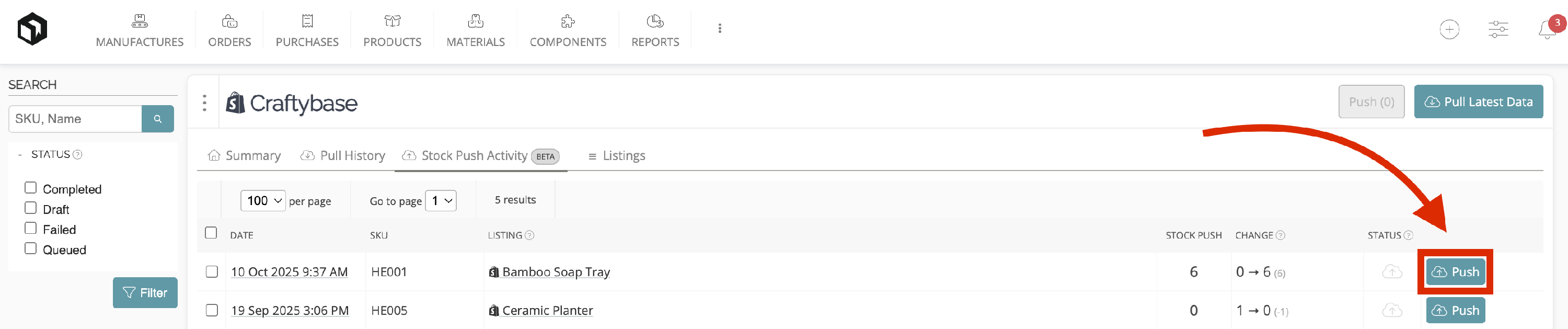
- Navigate to the Draft tab within the Stock Push page
- Locate the Draft Stock Push you want to send to your Integration
- Confirm the stock quantity shown is expected
-
Click Push to send the updated stock level to your integration
Automating stock updates with Auto-Push
Auto-Push automatically sends stock updates from the app to your integrations on a set schedule, helping keep inventory accurate without ongoing manual work.
Why enable Auto-Push
- Keeps stock levels in sync across your integrations automatically
- Reduces the need to manually review and push updates
- Automatically maintains inventory accuracy across platforms
When Auto-Push works best
- Your inventory is accurate in the app
- You're confident in navigating Stock Push
- You want to move to a set-and-forget approach to ongoing stock updates
If you're still reviewing or correcting stock levels, manual Stock Pushes can help you get everything aligned first.
For detailed setup instructions and tips, see About Auto-Push.
Auto-Push stock updates are available only on our Business or Growth plans.
Troubleshooting
If you're having issues pushing stock to a specific integration, check our dedicated guides for setup and variation requirements:
- Pushing Stock Updates to Shopify
- Pushing Stock Updates to Etsy
- Pushing Stock Updates to WooCommerce
- Pushing Stock Updates to Square
- Pushing Stock Updates to Faire
These articles walk through common setup steps and edge cases that can prevent stock updates from going through.
FAQ
How can I view my Stock Push history for a specific product?
You can view push attempts and results in the Stock Push tab under Listings.
Why are some of my products not appearing in the stock push tab?
the app will only push active products to your integrations. If you don't see a product in the stockpush menu, it's likely that the product has been archived. To fix this, double-check the product's status and reactivate it if necessary. Once active, it will appear in the stockpush menu.
How are products with decimals pushed to your integrations?
Most integrations do not support tracking inventory in decimal quantities; they generally only allow whole numbers. Because of this, when product quantities that include decimals are pushed, the value will be rounded down to the nearest whole number before pushing to your integration.
Example: If the app shows 136.8 units, the quantity pushed to your integration will be 136 units.
Can I report material stock availability (based on raw materials) to Etsy?
Currently, the app cannot send raw material inventory levels or availability to Etsy. Only stock updates for fully manufactured products that exist in stock are pushed. If you want to adjust stock visibility based on raw materials in production, this would need to be managed manually outside of the app.
VIDEO: About Stock Push
Need Help?
Still have questions about using Stock Push? Please get in touch, and we'll be happy to help.